
How to Setup Canon printer
Canon printer is one of top printer provider companies in all over the world. Usually, their other many brands provide printers and their products but canon is the first priority when it comes to purchase online or by store. Type of printer Inkjet Printers, Laser Printers, All in One Printers, Color Printers, Wireless Printers, Airprint Printers and Bluetooth Printers. The most popular canon printer series are Pixma and Maxify. The Canon printer is not only chosen for home purpose but also for office use. The best of this brand printer it gives crisp and high colour print or image. Even for nonstop printing work, Canon offers a Megatank printer.
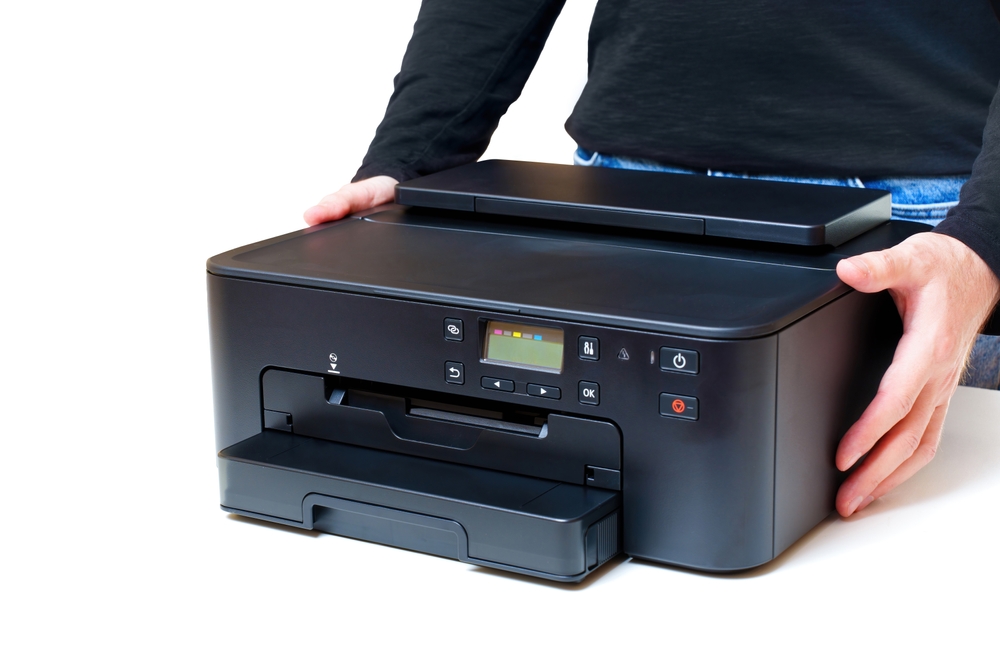
Setup and Install Canon Printer Wireless or Through WIFI
Bought Canon printer for the first time and want to set it up wirelessly, well setup Canon printer depends on what device you are going to connect the printer to. If you are using a laptop or desktop like Windows or Mac then you can connect a canon printer through WIFI.
Steps to Connect Canon Printer Through WIFI
- 1. Unpack your brand-new printer
- 2. Fit Cartridge in printer
- 3. Turn on the canon printer
- 4. On printer Screen navigate setup printer through clicking screw driver or plier button
- 5. Click Wireless Lan setup and press ok
- 6. Select Manual setup
- 7. Let your canon printer detect your WIFI network
- 8. Select your WIFI router network and push ok
- 9. Now enter your WIFI password through the keypad in the printer and click ok (Through * button you can change number or symbols.
- 10. Once connected with WIFI network press ok
Setup and Install Canon Printer by WPS Method
If you don’t know the WIFI network password then another way to connect your Canon printer through the device is the WPS method. WPS is one of the easiest ways to connect a canon printer wirelessly.
- 1. Turn on the canon printer
- 2. Hit the plier and screwdriver button in printer
- 3. Navigate Wireless Lan setup and hit ok
- 4. Scroll the printer display and select WPS (Push Button) and push ok
- 5. Push ok button again for confirmation
- 6. Now hold WPS button in your router until power button start flashing (Depend on router the way it activates WPS in router)
- 7. Check printer display if it says connected than push ok button
- 8. Press Plier and screwdriver button again
- 9. If your WIFI router and signal button disappear that means router connected with printer through WPS method.
- 10. Once connected with WIFI network press ok
Connect and Setup Canon Printer Through Smartphone and Tablet
Keeping a smartphone or tablet for regular use is very common. But what is not common is how to use and connect a canon printer through smartphone and tablet. Let’s set up a smart canon printer with smart devices.
- 1. Go to play store (Android) or app store (IOS)
- 2. Search Canon printer App
- 3. Download and install canon print inkjet app
- 4. Once it successfully downloaded and install open the app
- 5. Now click agree in the displaying agreement
- 6. Allow printer access device location
- 7. Allow printer access photos, media and files in your phone or tablet
- 8. Now go to the printer screen
- 9. Click plier with screwdriver button
- 10. Select Wireless Lan setup and hit ok
- 11. Select Easy WL setup and push ok button
- 12. Now go back to your smartphone screen
- 13. Canon app will ask to search available printer
- 14. Click yes
- 15. App will ask to setup WIFI with printer model number click yes
- 16. Click connect device
- 17. Now select your Wireless router from the following list displaying on phone screen
- 18. Enter your WIFI password and click ok
- 19. Now app will send settings information to the printer
- 20. Now printer screen will display easy WP connect is completed
- 21. Press ok
- 22. Now click on the plier and screwdriver button if the printer screen shows WIFI and signal that means it is connected successfully.
These are three ways to connect and set up the Canon printer wireless method. You also check the manual comes in the printer box.